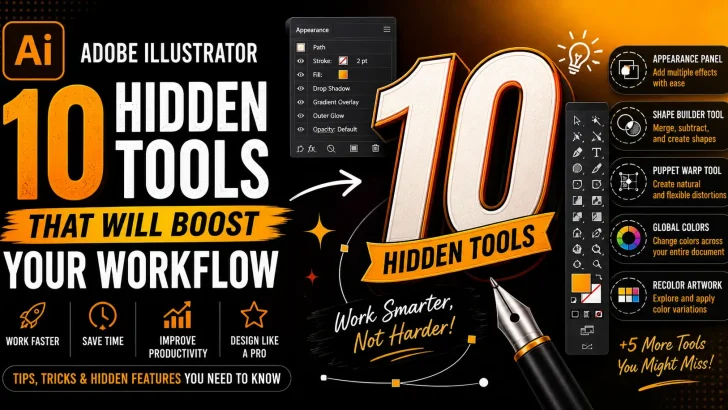
Discover 10 hidden tools in Adobe Illustrator that can dramatically improve your workflow, save time, and help you design faster with professional results.

Most designers only scratch the surface of what Adobe Illustrator can do. Beyond the basic tools lies a powerful set of hidden features that can significantly speed up your workflow and unlock new creative possibilities.
If you’ve ever felt like your design process is slower than it should be, these hidden tools might be exactly what you need.
1. Appearance Panel (Your Secret Weapon)
The Appearance Panel allows you to apply multiple fills, strokes, and effects to a single object.
Why it matters:
- Create complex designs without duplicating objects
- Easily edit effects in one place
- Save reusable graphic styles
2. Global Colors
Global Colors let you change a color across your entire document instantly.
Use case:
- Branding projects
- Theme adjustments
- Fast revisions for clients
3. Shape Builder Tool (Shift + M)
This tool lets you merge, subtract, or divide shapes intuitively.
Why it’s powerful:
- Faster than Pathfinder
- More visual and interactive
- Perfect for logo design
4. Puppet Warp Tool
A lesser-known tool that allows you to distort shapes naturally.
Best for:
- Character illustration
- Custom lettering adjustments
- Organic transformations
5. Offset Path (Hidden in Object Menu)
Create outlines or inner paths instantly.
Great for:
- Logo variations
- Sticker designs
- Layered typography
6. Recolor Artwork Tool
Quickly explore color variations for your design.
Benefits:
- Generate palettes instantly
- Test multiple color schemes
- Perfect for client presentations
7. Blend Tool
Create smooth transitions between shapes or colors.
Use cases:
- Gradients with depth
- Repeating patterns
- Abstract backgrounds
8. Symbols Panel
Turn objects into reusable assets.
Why use it:
- Maintain consistency
- Reduce file size
- Update all instances at once
9. Align to Key Object
Many designers miss this feature.
What it does:
- Align objects based on a selected key object
- Perfect for precise layouts
- Improves design accuracy
10. Isolation Mode (Double Click)
Edit objects without affecting the rest of your design.
Why it’s useful:
- Focus on details
- Avoid accidental edits
- Clean workflow for complex files
Bonus: Quick Actions You Should Know
- Press Tab → Hide panels instantly
- Press Ctrl/Cmd + Y → Outline view
- Press Shift + O → Artboard tool
These small tricks can save hours over time.
Conclusion
Mastering these hidden tools in Adobe Illustrator can completely transform your workflow. Instead of working harder, you’ll start working smarter—saving time while producing more professional results.
The difference between beginner and advanced designers often comes down to knowing these small but powerful features.
Want to design faster and stand out?
Browse premium fonts and design assets to combine with these powerful Illustrator techniques and elevate your creative projects instantly.